
Backbone for Desktop
Stream your PC games to your phone [ Open beta until 11/1 ]
- NVIDIA
- AMD
- Apple TV (tvOS) Coming soon
- LG TV Coming soon
- Android TV Coming soon
Easy as 1, 2, 3
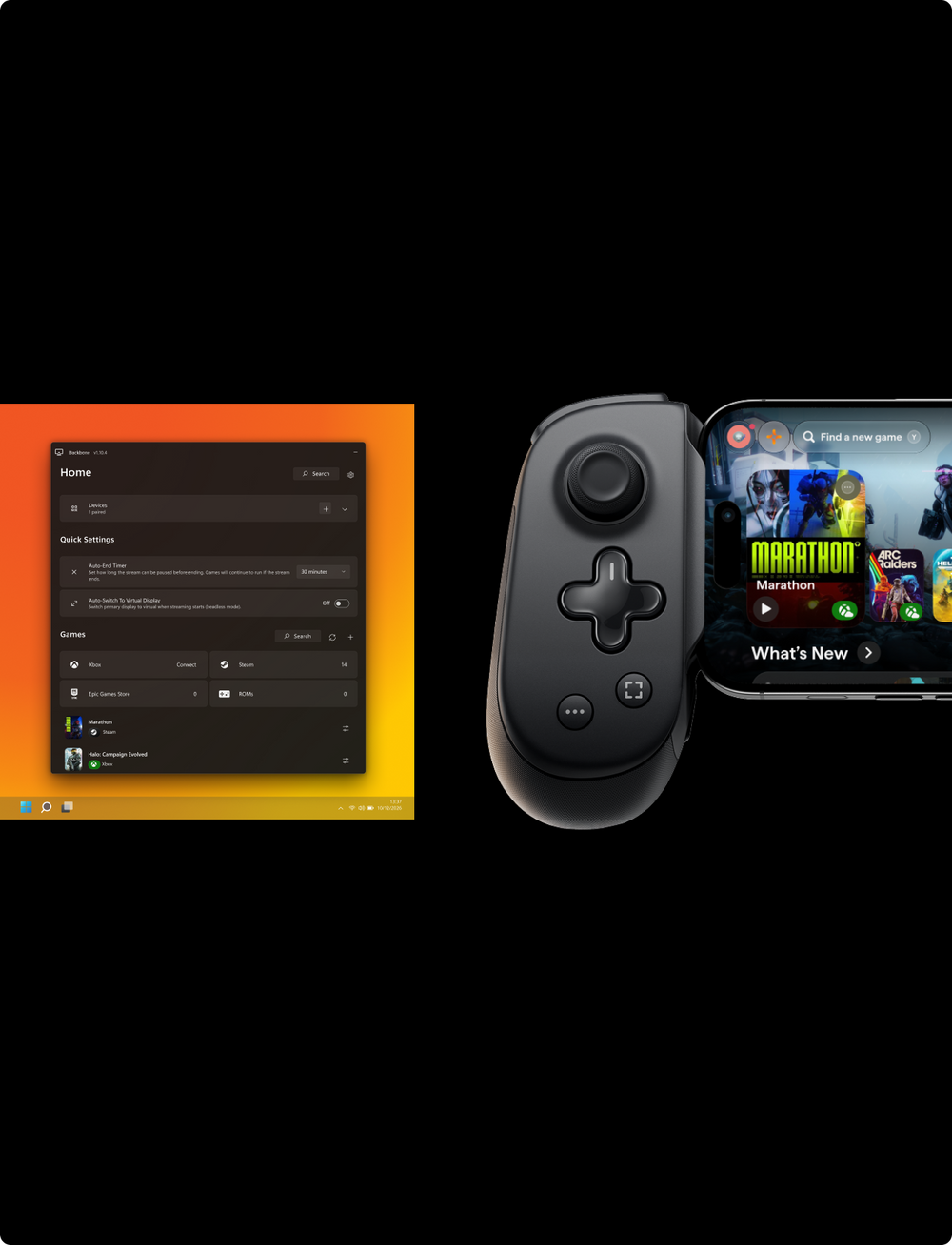
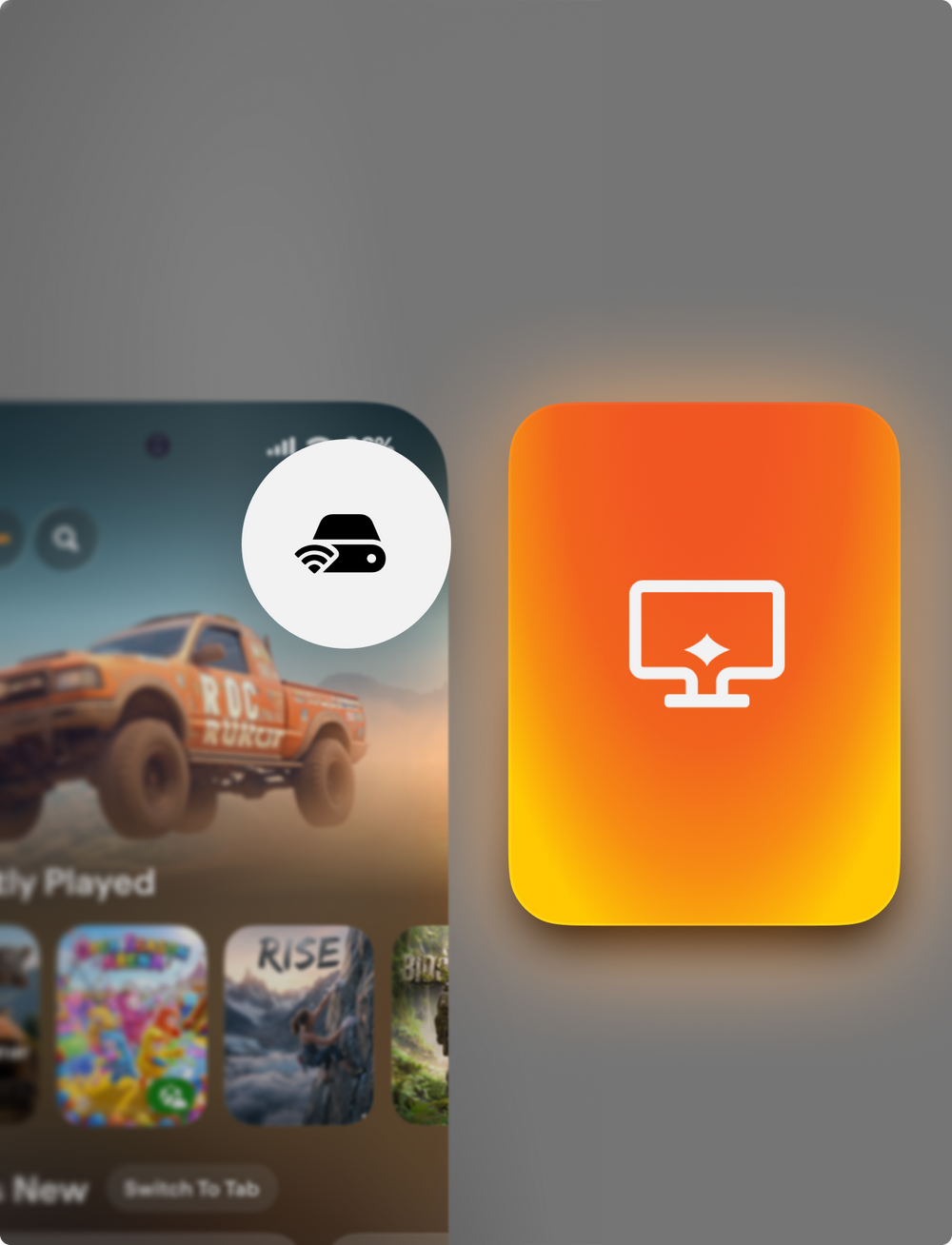
2
Open the Remote Play hub and select your PC.
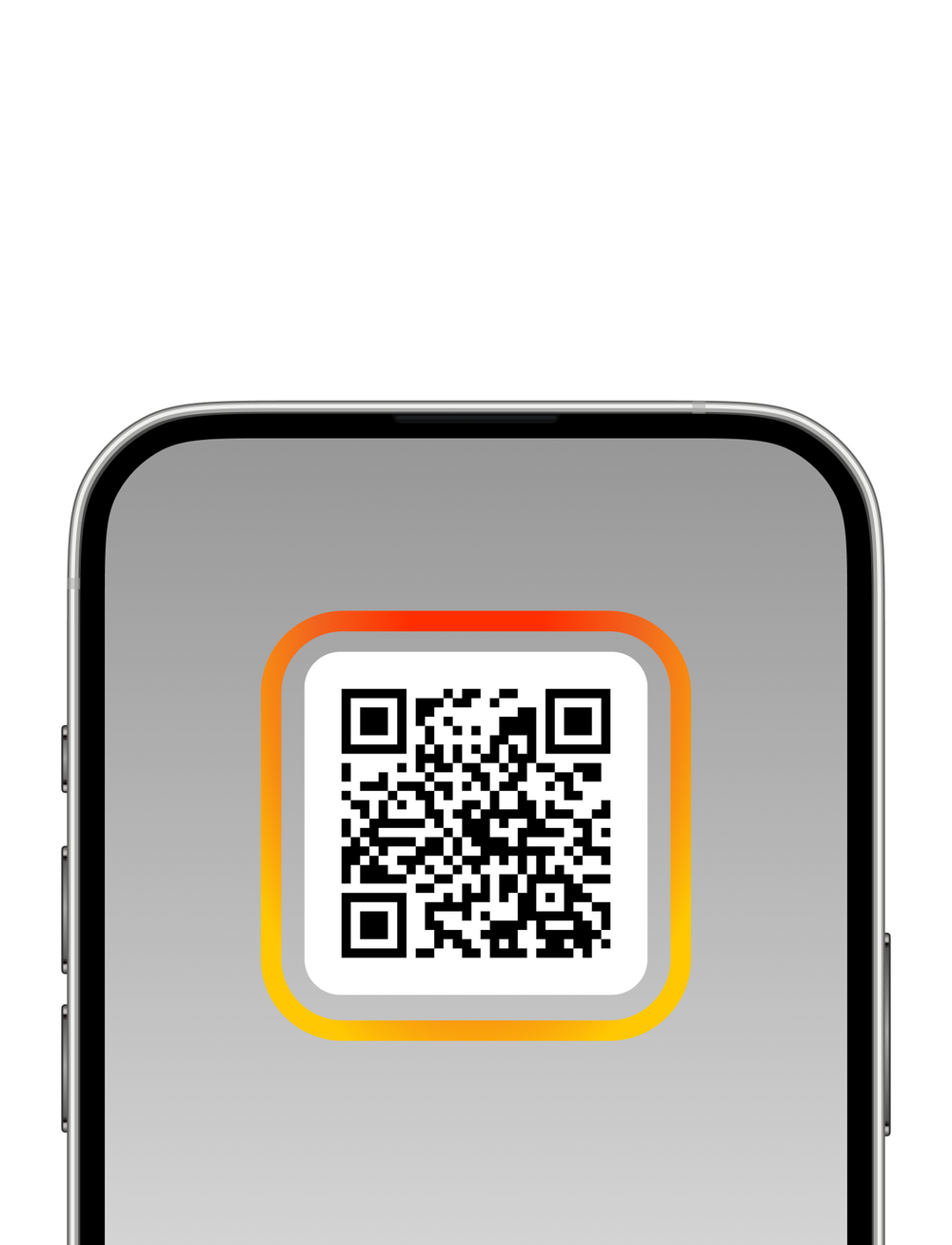
3
Pair with a QR code or PIN and start playing.
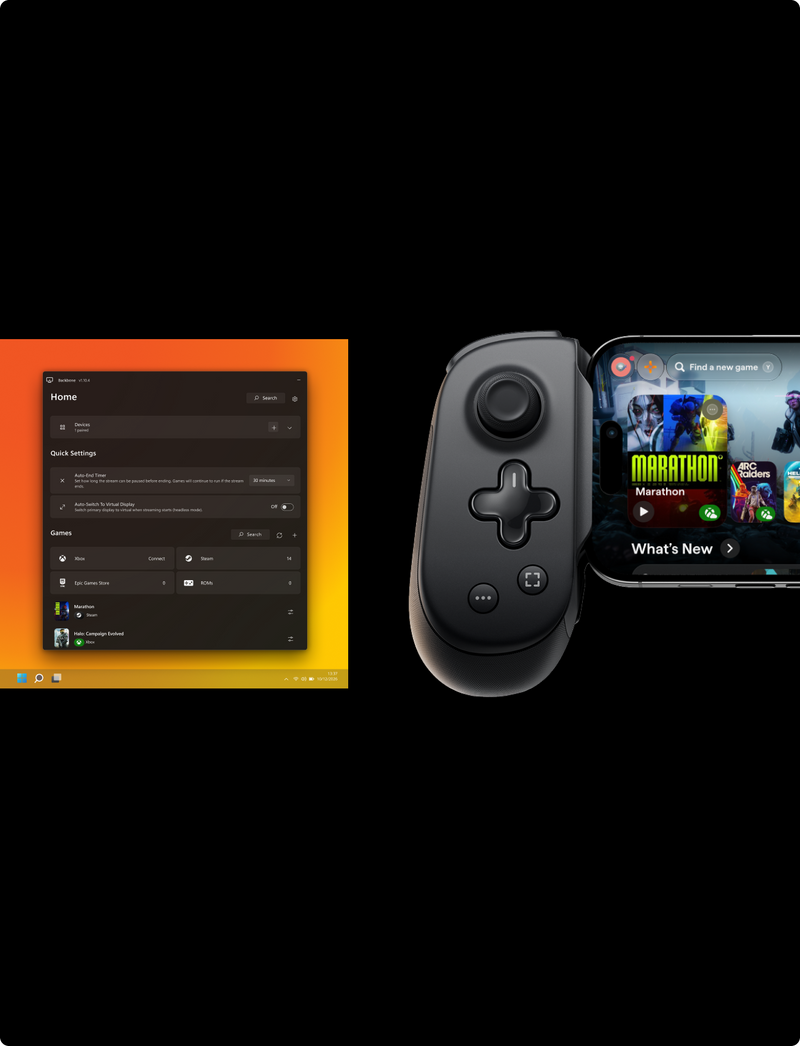
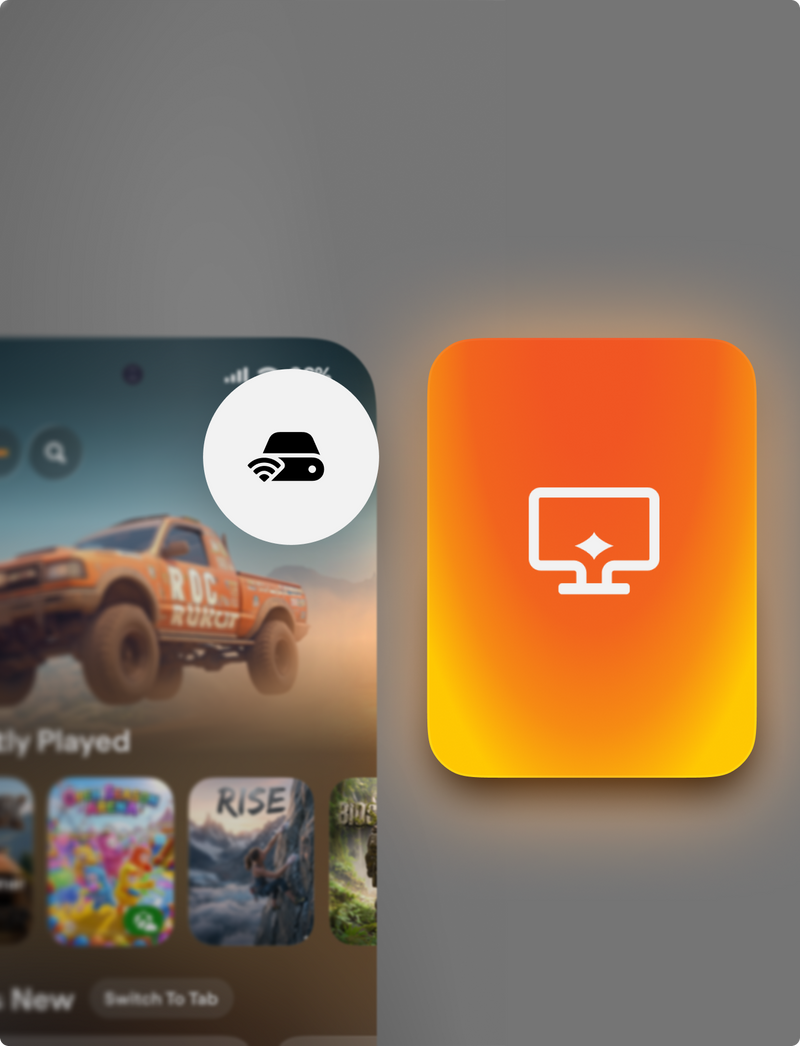
2
Open the Remote Play hub and select your PC.
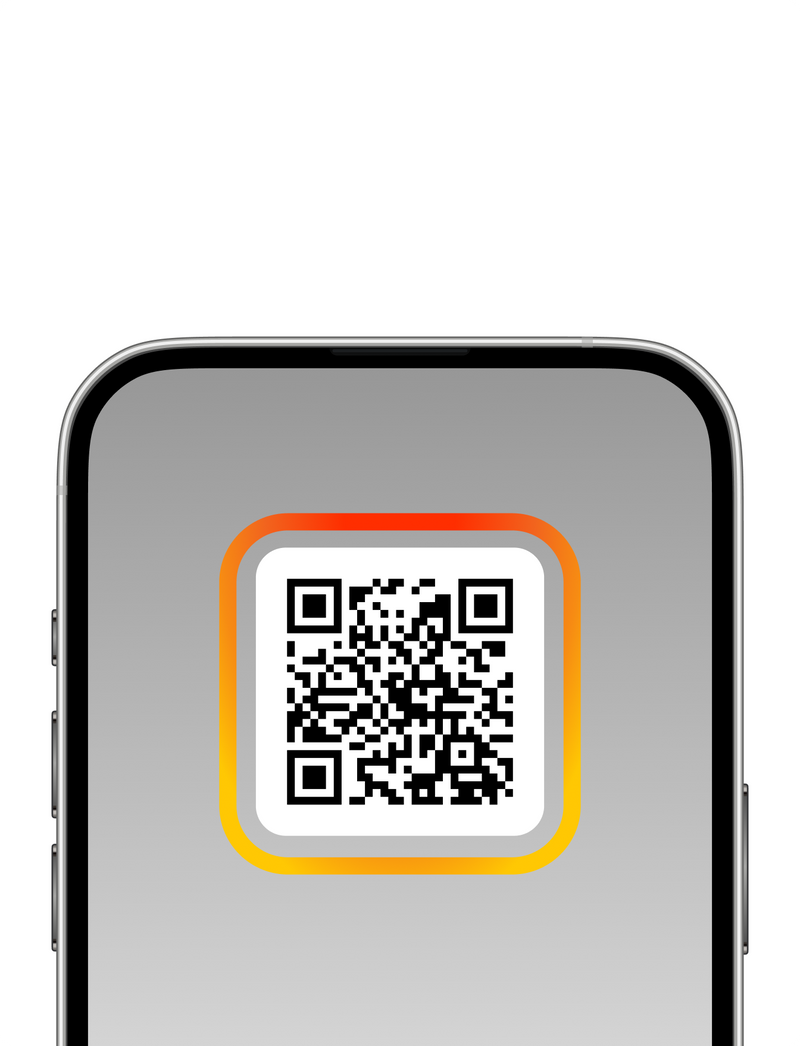
3
Pair with a QR code or PIN and start playing.
Focus on your game, not your library
Games from the most popular PC game marketplaces are auto-detected so you can start streaming right away. Games from other sources can be manually added too.
Auto-detect games from:


Steam, Epic Games Store, GOG, EA, Ubisoft Connect, Battle.net, and related marks are trademarks of their respective owners. Backbone is not affiliated with or endorsed by the respective platform owners unless expressly stated.
Our Top Features
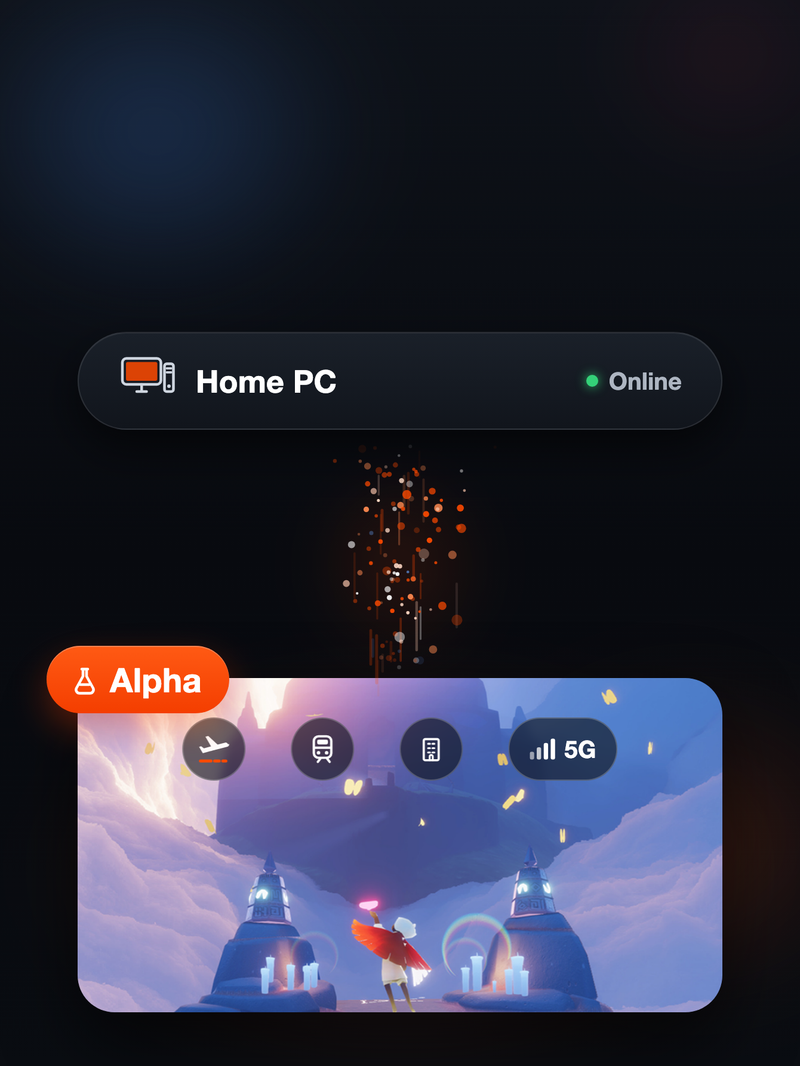
Play Away From Home
Stream your PC games over the internet, wherever you are.
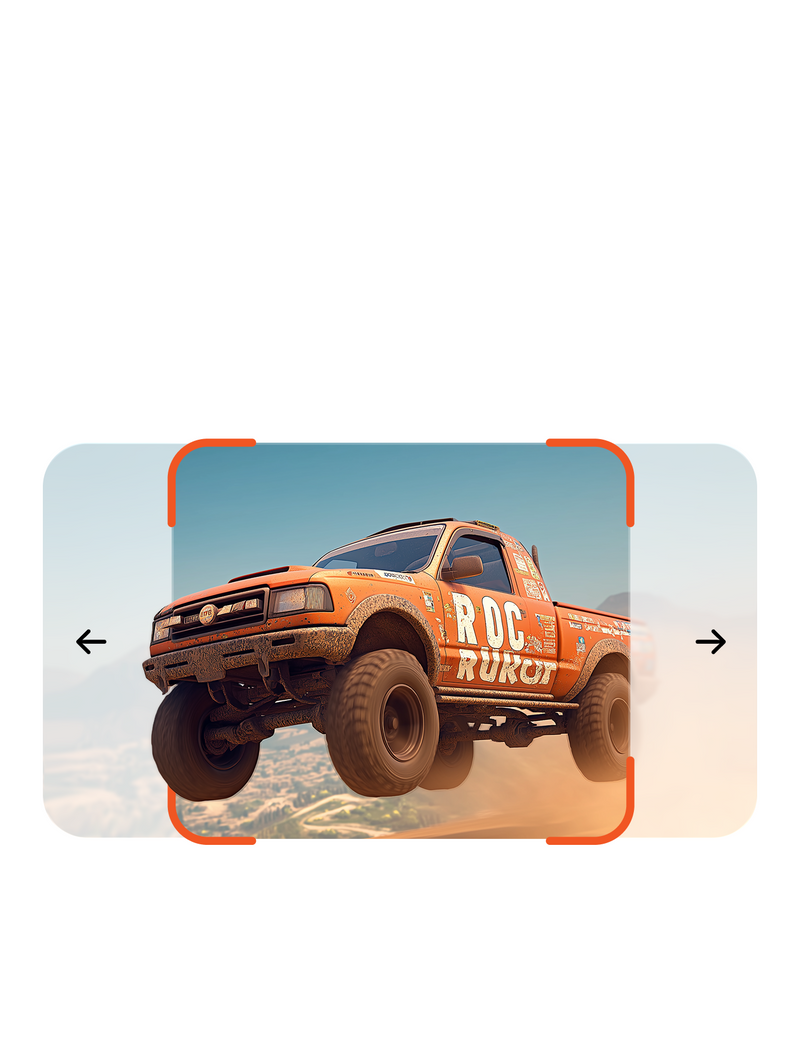
Virtual Display
Create a virtual display with different frame rates and resolutions.
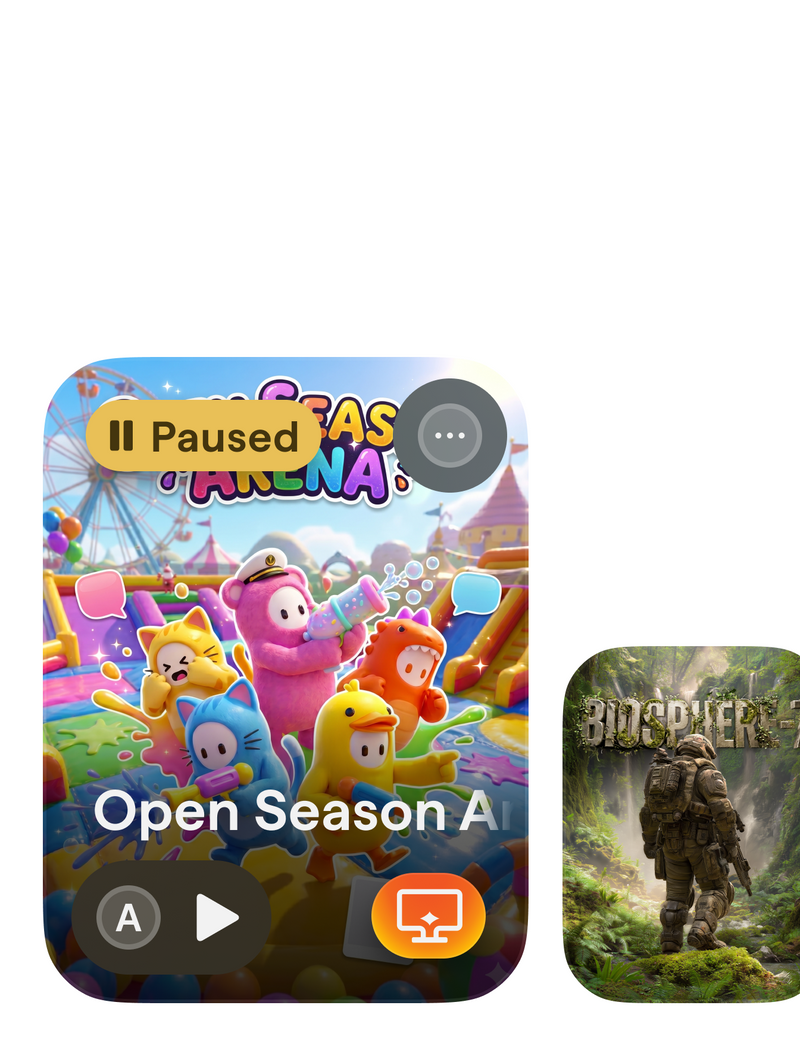
Stream Pausing
Pause a stream to keep the game running and pick it up later.
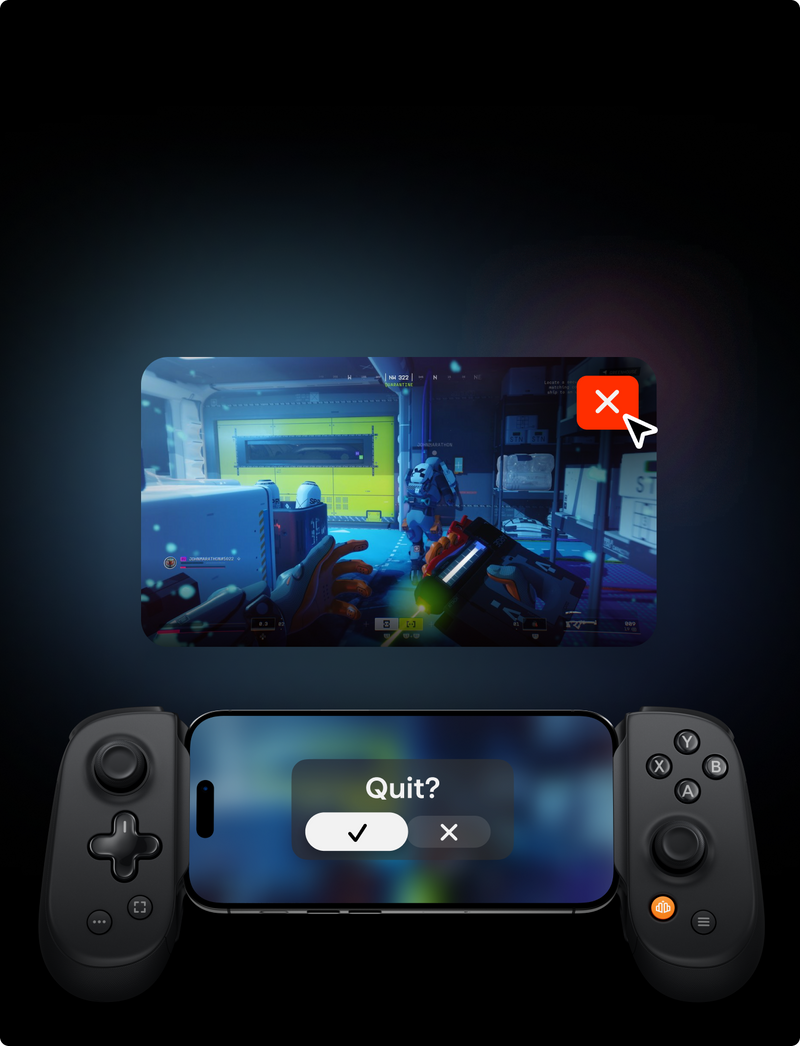
Launch Management
Quit a stream and we'll close the game on your PC for you.
Stream your PC games over the internet, wherever you are.
Create a virtual display with different frame rates and resolutions.
Pause a stream to keep the game running and pick it up later.
Quit a stream and we'll close the game on your PC for you.
It really is that easy...
Support & feedback
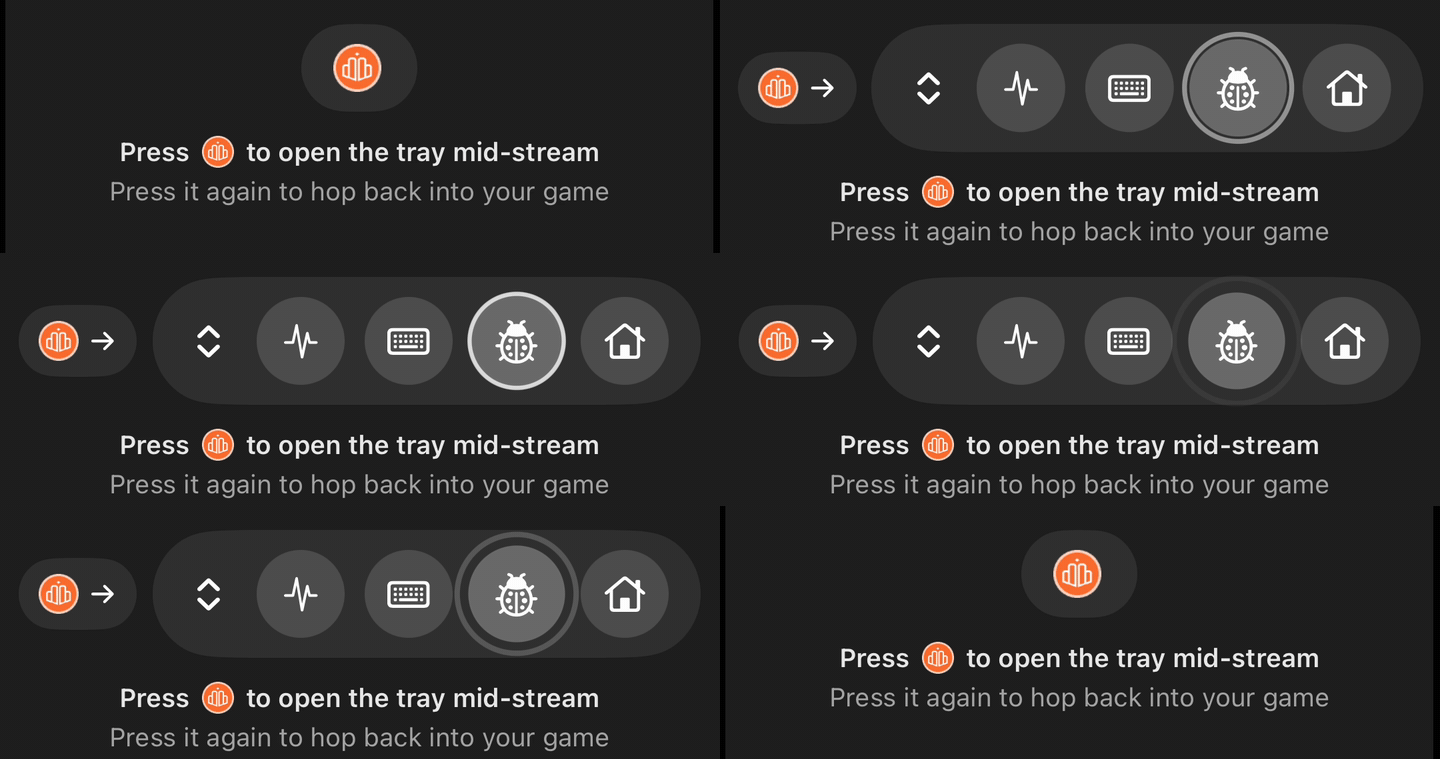
Spotted a bug mid-stream? Press the bug icon in the stream — it sends your report straight to us with the logs we need. For everything else:
PC Streaming FAQs
The Backbone for Desktop App is Backbone's desktop companion. It connects your gaming PC to the Backbone app on your phone, so you can browse your PC library from anywhere in the house and play your own games — your saves, your settings, your GPU — streamed live to your phone.
Install the Backbone Desktop App on your PC and open it. Then open the Backbone app on your phone and scan the QR code the desktop app shows on screen. That's it — pairing is a one-time step, and from then on your PC appears in the Backbone app whenever both are online.
No. PC Streaming works with the Backbone app's touch controls, and with any Bluetooth or wired controllers. A Backbone controller adds native button mapping and the lowest-latency setup.
No, this feature is free.
Steam, XBOX, Epic Games Store, GOG, EA and Ubisoft Connect are auto-detected. Games from other sources can be added to your library manually.
We currently support NVIDIA and AMD graphics cards.
Streaming quality depends on your network. Put your PC on a wired connection where you can, keep your phone on 5 GHz Wi-Fi, close bandwidth-heavy apps on both devices, and try a lower resolution or frame rate in settings.
Single-player and controller-native titles stream best. Fast competitive multiplayer is the most sensitive to added latency.
No. You sign in once on your phone, in the Backbone app, and your phone handles everything to do with your account. The desktop app never asks for your password and never stores your Backbone credentials on the desktop.
The desktop app finds the games already installed on your PC and syncs them into your Backbone library, artwork and all. Tap a game on your phone and the desktop app launches it on your PC and streams it straight to you.
When you start streaming, the desktop app can create a virtual display that exactly matches your phone — same resolution, same refresh rate — so games render at your phone's native shape instead of being cropped or letterboxed from your monitor. It's one setting with two options: Match the phone (recommended) or Off, which streams your monitor as-is.
On Windows 10, the desktop app mirrors your main display instead — the virtual display requires Windows 11.
Backbone supports any resolution your phone reports to the desktop app, with refresh rates and streaming up to 120Hz / 120fps on supported phones and PCs with a capable hardware encoder.
If a game has its own frame-rate limit—for example, 60fps—the stream will run at that game’s maximum frame rate.
No — though home is where streaming is at its best, and a wired or 5GHz connection for the PC is ideal. Playing away from home works too; it's in its early stages during the beta, so expect some rough edges. If anything needs attention, the connection troubleshooter in Settings will tell you.
Yes — and it feels native. Your controller input travels to your PC, where the desktop app presents it as a standard XBOX controller. Any game with controller support just works, with no per-game setup.
- A Windows gaming PC. Windows 11 (22H2 or later) for the full experience, including the virtual display. Windows 10 works too, with screen mirroring instead.
- An NVIDIA GeForce or AMD Radeon GPU.
- The Backbone app on your phone (iOS or Android), updated to the latest version.
- Your home network — wired or 5GHz Wi-Fi for the PC is recommended.
No — the desktop app is Windows-only, and Mac hosting isn't on the roadmap. Your phone is the other half either way.
The Backbone Desktop App installs two small signed drivers — the Backbone virtual display and the virtual gamepad — plus a background service that keeps streaming ready. Windows requires admin approval to set those up, and may ask again if the desktop app repairs them after a major Windows update.
Open Settings and run the connection troubleshooter. It checks pairing, drivers, and network reachability, and can repair most problems in place.
The desktop app updates itself. Beta builds arrive automatically, so you're always on the latest without reinstalling anything.
The best way is built into the stream: press the bug icon mid-stream and your report reaches us directly, along with all the logs we need to troubleshoot the issue. You can also use the support links below, or email beta@playbackbone.com — screenshots and a note about what you were doing help a lot.
